What You Can Do with Different Font Weights

If you are a Mac user or Google Fonts user, often you will come across a typeface that offers a variety of font weights. Have you ever thought about what you can do with these different font weights? Today, I would like to show a few examples that illustrate the their usage. If you have other interesting examples of using different font weights in your design, leave a comment below and let me know.
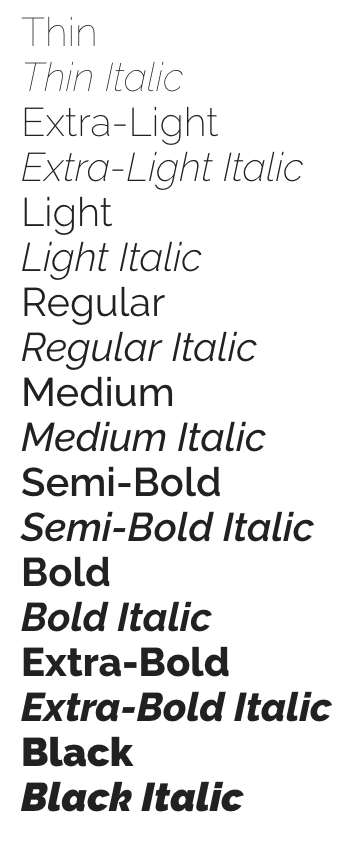

Raleway in Google Fonts offers a variety of font weights from 100 to 900. How can we use these different font weights to our advantage in our design?

Continue reading

How to Choose A Typeface Wisely

Recently, the typeface of Samsung Galaxy Note 7’s logo really caught my attention. Its lower case letter “a” is so similar to its lower case letter “o”. It reminds of the typefaces Futura and Century Gothic which people sometimes mistakenly use for body text.

The letter "a" and "o" in the logo of Galaxy Note 7 are very similar in terms of shape.
The letter “a” and “o” in the logo of Galaxy Note 7 are very similar in terms of shape.

Typography plays such an important role in visual design that having a good understanding of it can really set your design apart from the crowd. Today I would like to share some insights on choosing appropriate typefaces.

Continue reading

Animation Design in Keynote: Cover Flow

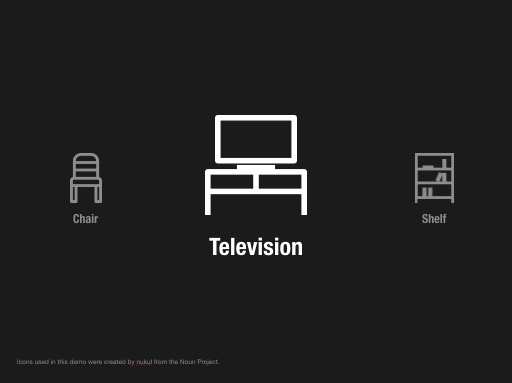
Are you a mac user? Have you used the Cover Flow feature in Finder? You can activate Cover Flow by pressing Command+4. In Cover Flow, each item will flow from right to left. At the beginning, it looks smaller. Then it turns bigger at the center. Finally, it becomes smaller again as it leaves the stage. We can actually easily achieve the same effect in Keynote using Magic Move. Today, I will show you how.
Continue reading

Animation Design in Keynote: Rotating Circles

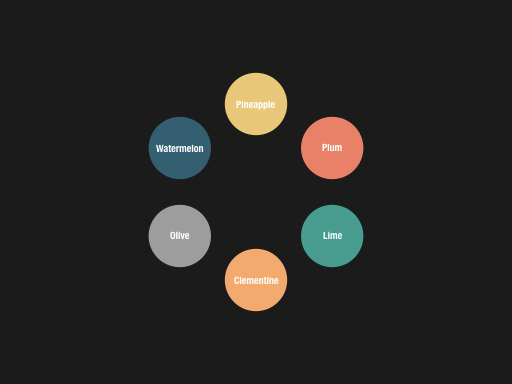
Magic Move is such a powerful feature in Keynote that it makes prototyping animations so much fun and easy. With a bit of creativity, Magic Move can be used to create some very amazing effects which can make your deck more lively and appealing. Today, I would like to share such an example, which gives an overview of all items you want to show and then goes into each of them one by one. This animation was created and used in one of my projects.

Continue reading